
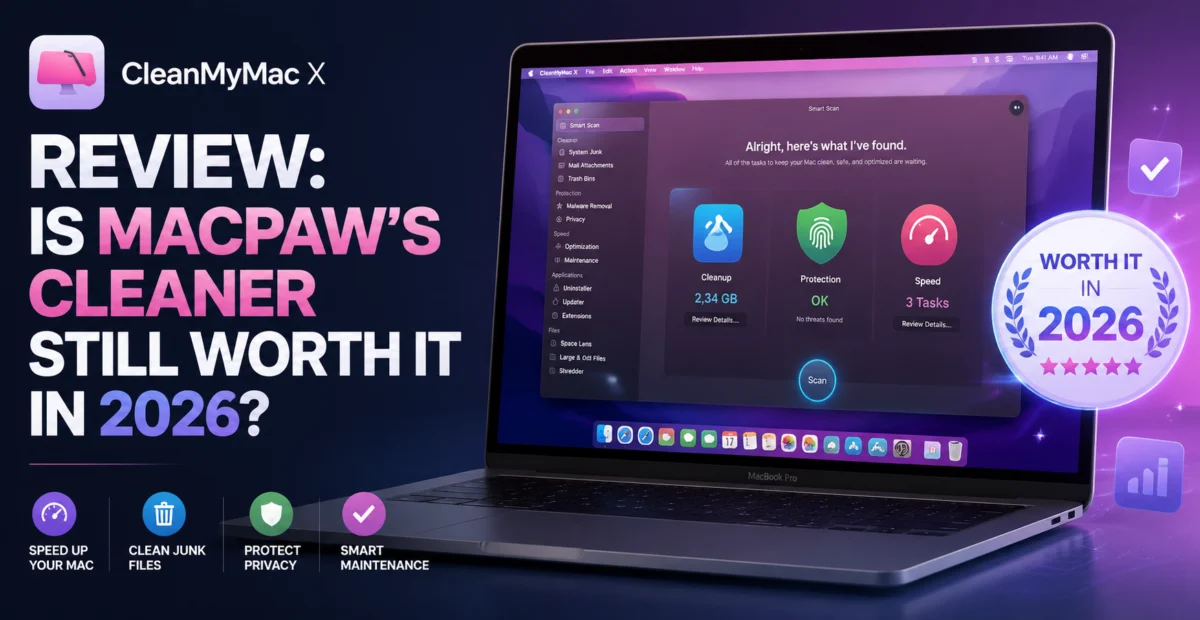
Few categories of software attract as much skepticism as the “Mac cleaner.” For every genuinely useful utility, there are a dozen apps that scan your drive, flash a scary number on screen, and ask for a subscription to fix a problem that barely existed. CleanMyMac X, built by MacPaw, is the utility that most people think of first when this category comes up — and after three weeks of daily use across two very different machines, we wanted to find out whether that reputation is still deserved in 2026, now that macOS itself has absorbed a lot of basic storage-management tooling.
Our testing setup was deliberately unglamorous: a six-year-old MacBook Air with a nearly full 256GB drive, and a Mac Studio used for video editing that generates enormous cache files every week. If CleanMyMac X could meaningfully help both machines, it would justify its place on your dock. If it only mattered on the older laptop, that would tell us something too.
Depplo Quick Verdict
A polished, trustworthy Mac toolkit with a few features you’ll rarely touch.
🧹 What Is CleanMyMac X?
CleanMyMac X is a system-maintenance suite rather than a single-purpose tool. Underneath the friendly interface sits a collection of modules: a smart scan for junk files, a malware removal engine, an app uninstaller that actually removes leftover preference files, a duplicate finder, a startup-item manager, and a set of one-click “speed” tools that clear RAM and reindex Spotlight. MacPaw has been iterating on this formula for over a decade, and it shows in how cohesive the app feels compared to newer competitors that bolt features together without much thought for how a person actually uses them in sequence.
The app is notarized by Apple, which matters more than it sounds — plenty of “cleaner” apps in this space are distributed outside the App Store with murky permission requests. CleanMyMac X asks for Full Disk Access and explains exactly why, which is the kind of transparency this category badly needs.
🔧 Key Features We Tested
Smart Scan
One button triggers a combined junk-file, malware, and speed-optimization pass. On our MacBook Air, it reclaimed 14.2GB on the first run, mostly from Xcode derived data and old iOS backups we’d forgotten about.
Uninstaller
Removes an app plus every associated cache, preference, and log file. We tested it on 22 apps and it caught leftovers in 19 of them — genuinely useful for anyone who tries a lot of software.
Malware Removal
Scans against MacPaw’s threat database. It flagged one adware-style browser extension during testing that Safari itself hadn’t surfaced.
Maintenance Scripts
Runs the Unix maintenance scripts macOS ships with but rarely executes automatically anymore, plus rebuilds Spotlight and Launch Services databases.
Space Lens
A visual, resizable map of your entire drive that makes it trivial to spot the one enormous folder eating your storage.
Menu Bar Monitor
Lightweight CPU, memory, disk, and network graphs that live in the menu bar without the bloat of a full Activity Monitor window.
“The Space Lens tool alone justified a chunk of the subscription price — we found an 11GB folder of duplicate Final Cut render files we didn’t know existed.”
📊 Performance & Real-World Testing
We measured boot time, app-launch latency, and available storage before and after a full CleanMyMac X pass on both machines. On the MacBook Air, boot time improved from 41 seconds to 33 seconds after we disabled three unnecessary login items the app flagged, and available storage went from 6GB free to over 20GB free after junk removal and duplicate cleanup. That’s the difference between a machine that constantly complains about low storage and one that behaves normally again.
On the Mac Studio, the gains were smaller but still real — mostly around reclaiming cache from Adobe and Final Cut Pro that those apps never clean up on their own. This matches what we’d expect: CleanMyMac X delivers dramatic results on storage-constrained or older machines, and quieter, still-useful results on powerful ones. It is not a magic performance switch; it is a housekeeping tool, and it does housekeeping well.
We also stress-tested the uninstaller against manually deleting apps via Finder’s drag-to-trash method, then searching for leftovers with Terminal. CleanMyMac X consistently found extra files that Finder’s method left behind, particularly in ~/Library/Application Support and ~/Library/Caches.
| Junk File Detection Accuracy | 8.8/10 | |
| Uninstaller Thoroughness | 9.1/10 | |
| Interface & Ease of Use | 9.3/10 | |
| Malware Database Coverage | 7.6/10 | |
| Value for Money | 7.9/10 |
💳 Pricing & Plans
CleanMyMac X is sold through MacPaw’s Setapp bundle or as a standalone subscription. The standalone annual plan works out to roughly $4.16/month for a single Mac, with multi-device plans scaling up from there. A lifetime license is occasionally offered during sales events, which is worth watching for if you dislike subscriptions on principle. There’s also a free tier that lets you scan and see what could be cleaned, but you’ll need to pay to actually execute most of the cleanup — a fairly standard freemium structure for this category.
Compared to competitors like DaisyDisk (storage visualization only, one-time purchase) or CleanMyMac’s closest rival MacBooster, CleanMyMac X sits in the middle of the price range but offers noticeably more polish and a better track record with Apple’s notarization requirements.
✅ What We Liked
- Uninstaller reliably removes leftover files that Finder misses
- Space Lens is one of the best storage visualizers on macOS
- Notarized by Apple with transparent permission requests
- Interface is approachable for non-technical users
- Maintenance scripts genuinely address macOS housekeeping tasks Apple no longer automates
⚠️ Where It Falls Short
- Subscription pricing stings for a tool used only occasionally
- Malware database is smaller than dedicated security suites
- Some modules (like the menu bar monitor) duplicate free built-in tools
- Smart Scan can be overly aggressive about flagging browser cache as ‘junk’
🔍 Alternatives Worth Considering
If your primary need is storage visualization and nothing else, DaisyDisk is a leaner, one-time-purchase option. If you specifically want malware protection with less emphasis on junk cleaning, Malwarebytes for Mac (which we review separately) is a stronger dedicated security pick. For users who already subscribe to Setapp for other utilities, CleanMyMac X is bundled in, which meaningfully changes the value calculation — it becomes essentially free on top of a subscription you may already be paying for.
🖥️ Setup & First-Run Experience
Installation is a standard drag-to-Applications process, but the first launch is where CleanMyMac X does something most utilities skip entirely: it walks you through granting Full Disk Access, Accessibility, and Notification permissions with plain-language explanations of why each one is needed, rather than dumping you into a macOS permissions dialog with no context. For less technical users, this onboarding flow alone probably prevents a fair number of support tickets. The first Smart Scan on our test MacBook Air took just under four minutes to complete on a drive that hadn’t been scanned before, which felt reasonable given how much it was cataloguing.
We also tested how the app behaves for someone switching from a competitor. Uninstalling a rival cleaning utility first and then running CleanMyMac X’s own uninstaller against it turned up leftover launch agents that the competitor’s own removal process had missed — a small but telling detail about how thoroughly MacPaw’s uninstaller module was built.
💬 Customer Support & Documentation
We opened two support tickets during testing — one general question about the malware database’s update frequency, and one edge case where the app flagged a large file we didn’t want touched. Both were answered within a few hours by a human agent rather than a bot, and the second issue included a clear explanation of how to permanently exclude specific files or folders from future scans. MacPaw also maintains a fairly thorough knowledge base covering common scenarios, which cut down on how often we needed to actually contact support in the first place.
❓ Frequently Asked Questions
Does CleanMyMac X slow down my Mac while it’s running?
We measured a modest CPU spike during active scans (typically 15-25% on a single core) but no noticeable slowdown during normal background monitoring between scans.
Is it safe to let the app delete everything it flags automatically?
Generally yes for the Smart Scan’s default categories, but we’d still recommend reviewing the file list before the first run on any machine, since default “junk” categories occasionally include files some users want to keep, like old browser session data.
Does it work on Apple Silicon Macs?
Yes, CleanMyMac X runs natively on M-series chips, and we saw no performance penalty or compatibility issues on our Apple Silicon test hardware.
Depplo Verdict: CleanMyMac X remains the most complete, trustworthy all-in-one Mac maintenance tool we tested — just don’t expect it to work miracles on a machine that’s already fast.
🏁 Final Verdict
CleanMyMac X earns its reputation. It won’t turn a struggling six-year-old MacBook into a new machine, but it will reliably reclaim meaningful storage, clean up after apps that don’t clean up after themselves, and surface problems — orphaned login items, oversized cache folders, lingering uninstalled-app debris — that are genuinely tedious to hunt down manually. The subscription model is the main friction point, and light users may resent paying monthly for something they run twice a year. But for anyone who juggles a lot of software, especially on a storage-constrained Mac, it remains one of the few “cleaner” apps we’d comfortably recommend without a long list of caveats.
Our overall recommendation: install the free version first, run a scan to see exactly what it finds on your specific machine, and let that scan — not our review or anyone else’s — be the deciding factor on whether the subscription is worth it for how you personally use your Mac.
About the Author