
Depplo Score: 8.1 / 10 ⭐⭐⭐⭐☆
An App That Tries to Do Everything
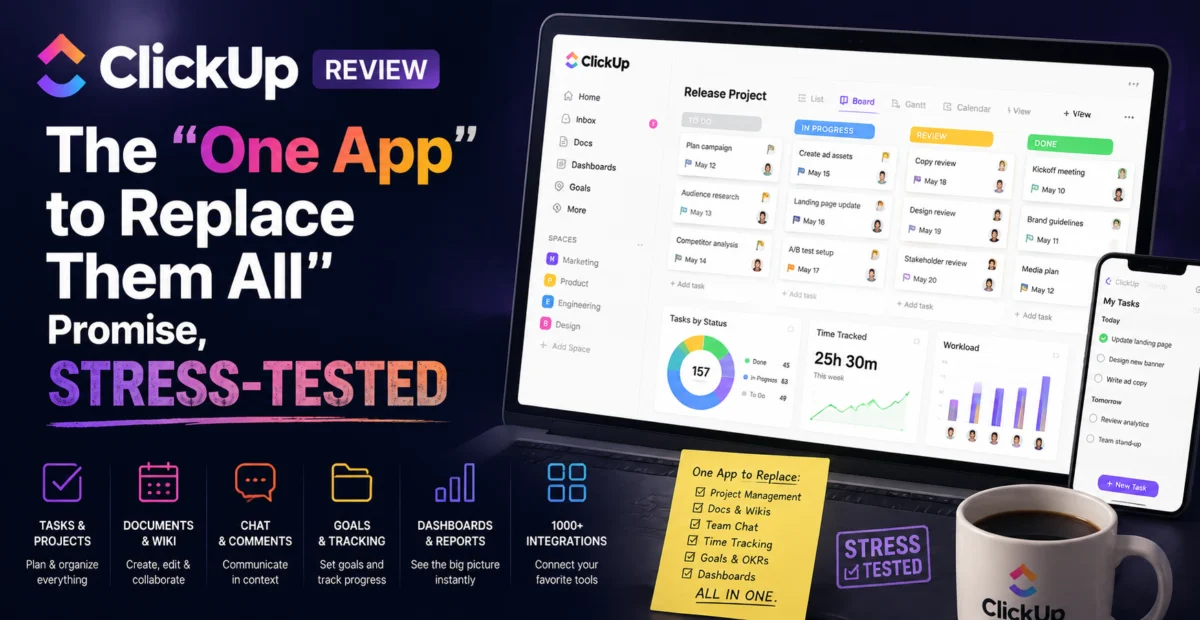
ClickUp’s core pitch is consolidation: tasks, docs, whiteboards, goals, chat, time tracking, and now a fairly capable AI assistant, all inside one platform. We approached this review skeptically — “does everything” tools often end up doing everything poorly — but after running an actual six-person content team’s workflow through ClickUp for three weeks, our take softened considerably.
Standout Features
ClickUp Brain
The built-in AI assistant can summarize task threads, generate status updates by pulling from linked tasks, and draft content directly inside docs. Its most genuinely useful trick is generating a “what changed this week” summary across an entire project, saving a manager from manually scrolling through dozens of updates before a Monday standup.
Custom Views and Statuses
Nearly every element of ClickUp is customizable — statuses, fields, automations, view types (List, Board, Gantt, Calendar, Mind Map). This flexibility is genuinely powerful for teams with specific workflows, but it’s also the single biggest source of setup friction. New team members regularly asked “wait, why is this task in this status” during our test period, simply because the workflow logic wasn’t self-evident.
Automations
ClickUp’s automation builder lets you trigger actions — assign a task, change a status, notify a channel — based on conditions, without needing a separate tool like Zapier for internal workflows. We built a simple automation routing overdue high-priority tasks to a manager’s inbox in about five minutes, no code required.
Docs and Whiteboards
The built-in docs editor is genuinely solid, and linking docs directly to tasks reduces the need to jump between a wiki tool and a project tracker. The whiteboard feature is decent for quick brainstorms but noticeably less polished than dedicated whiteboarding tools.
Pricing
| Plan | Price | Notes |
|---|---|---|
| Free Forever | $0 | Usage caps, good for testing |
| Unlimited | ~$7–10/user/month | Best value for small teams |
| Business | ~$12–19/user/month | Advanced automation & reporting |
| Brain Add-on | Additional per-user fee | Required for full AI feature set |
ClickUp updates its plan structure fairly often — verify current limits per plan before rolling this out to a full team.
Pros and Cons
✅ Pros
|
❌ Cons
|
Who Should Use ClickUp
ClickUp rewards teams willing to invest real time up front into designing their workflow — once that setup is done, the payoff is substantial. It’s a poor fit for solo users or very small teams who just need a simple list; the customization overhead isn’t worth it at that scale.
How It Compares
Against Notion, ClickUp is more task-and-workflow-oriented, while Notion leans document-first. Against Asana, ClickUp offers more raw customization but demands more setup effort to get there.
The Onboarding Reality Check
We tracked exactly how long it took our test team to reach a genuinely usable configuration, and it was not quick. Roughly six hours across three sessions were spent building custom statuses that matched our editorial process, configuring the right automations to route reviews to the correct people, and training team members on which view to check for which purpose. By comparison, a team switching to Todoist or a simple Trello board could realistically be productive within thirty minutes. This tradeoff is the central tension of ClickUp as a product: the ceiling is higher, but so is the floor you need to climb over first.
ClickUp Brain in Daily Use
The Weekly Summary Trick
The single most valuable AI feature we found was asking Brain to generate a plain-language summary of everything that changed across a project in the past seven days. For a project with roughly 60 active tasks, this took under thirty seconds and correctly surfaced the three most significant status changes, while appropriately ignoring minor field edits. This alone measurably shortened our Monday standup meeting.
Where Brain Falls Short
Ask it to draft an entire client-facing proposal from scratch, and the output tends to read generically, missing the specific tone and structure our team actually uses. It’s a genuinely strong internal summarization tool but a mediocre long-form content generator — a distinction worth understanding before assuming it can replace a human writer for external communications.
Testing the Automation Builder Under Real Conditions
Beyond our simple overdue-task routing example, we built a slightly more ambitious automation: when a task’s status changed to “Client Review,” automatically notify a specific Slack channel and change the task’s priority to “Urgent” if the due date was within 48 hours. This took roughly fifteen minutes to configure correctly, mostly due to the conditional logic UI requiring some trial and error. Once live, it ran reliably across two weeks of testing without a single missed trigger, which speaks well to the platform’s underlying reliability even if the builder itself isn’t the most intuitive we’ve used.
A Note on Performance at Scale
With a workspace of roughly 400 active tasks across multiple lists, we noticed occasional loading delays when switching between heavily-filtered custom views, particularly on the Gantt-style timeline view. This wasn’t severe enough to disrupt daily work, but larger organizations with thousands of tasks across many teams should budget for this and test performance at their actual scale before a full rollout, rather than assuming small-team testing will generalize perfectly.
We also tested ClickUp’s mobile app during the review period, primarily for quick status checks and light task edits while away from a desk. It handled basic navigation and commenting well, but heavily configured views with many custom fields felt cramped on a smaller screen, and we found ourselves reaching for the desktop app for anything beyond a quick glance or a simple status update between meetings, and would recommend keeping mobile use deliberately lightweight rather than trying to manage a full complex workspace from a phone screen, reserving heavier configuration work and multi-view analysis for a proper desktop session where the extra screen real estate actually pays off.
Tips for a Smoother ClickUp Rollout
- Assign one internal “ClickUp owner.” Teams that succeed with the platform almost always have one person responsible for maintaining the workflow structure, rather than leaving configuration decisions to consensus.
- Start with a single space before expanding. Rolling the entire organization onto a fully customized structure on day one is a common mistake; pilot with one team first and expand once the workflow is proven.
- Use templates rather than building views from scratch. ClickUp’s built-in template library covers common workflows reasonably well and saves significant setup time versus starting from a blank space.
- Revisit your automation rules quarterly. Workflows evolve, and stale automations built for an old process are a common source of confusion for newer team members.
Long-Term Cost Considerations
Beyond the sticker price, it’s worth budgeting for the real time cost of ongoing administration. Unlike simpler tools that mostly run themselves, ClickUp’s flexibility means someone needs to periodically audit and prune unused automations, outdated statuses, and abandoned custom fields, or the workspace gradually accumulates clutter that undermines the very organization the tool was meant to provide. Teams that treat this maintenance as a real, recurring task tend to get dramatically more long-term value than teams that set it up once and never revisit the structure.
Frequently Asked Questions
Is ClickUp good for solo freelancers? It can work, but the customization overhead rarely pays for itself at that scale — a simpler tool is usually the better starting point.
Do I need the Brain add-on to get value from ClickUp? No — the core task and view customization stands on its own; Brain is a genuine bonus rather than a prerequisite for the platform’s core value.
How steep is the learning curve for new hires? Expect a real onboarding session rather than assuming intuitive discovery; teams that skip structured training tend to underuse the platform’s strongest features.
Final Thoughts
ClickUp won’t feel simple on day one, and teams should go in expecting a genuine onboarding period rather than instant productivity. But for a mid-sized team willing to make that investment, the consolidation payoff — fewer tools, fewer subscriptions, fewer context switches — is real and measurable over a few months of use.
Just go in with clear eyes about the setup cost, assign an internal owner to maintain the structure, and resist the temptation to turn on every available feature at once. Teams that respect that gradual rollout tend to end up as genuine long-term advocates rather than abandoning the platform three months in out of sheer configuration fatigue.
About the Author