
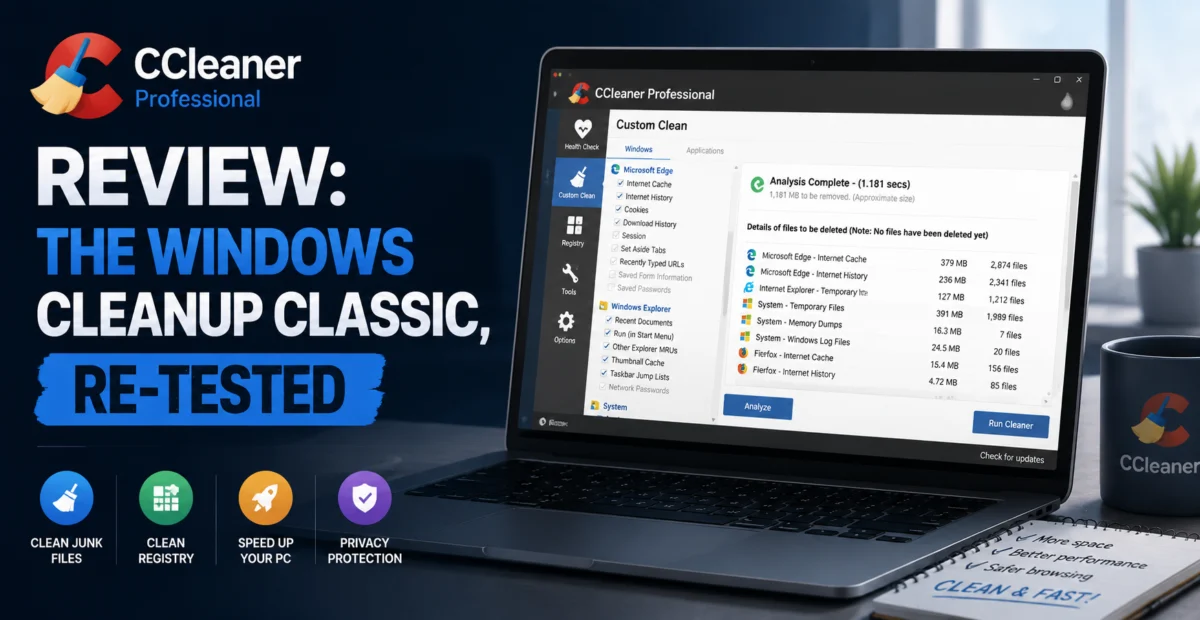
CCleaner is one of those names that predates most modern software categories entirely. Released back when Windows XP was the default operating system on most home PCs, it built its reputation on a single, simple promise: clear out the temporary files, browser junk, and registry clutter that Windows accumulates, and hand back disk space and speed. Two decades, an acquisition by Avast, and a couple of well-publicized security incidents later, the question we set out to answer was straightforward — is CCleaner Professional in 2026 still the utility it once was, or is it coasting on brand recognition alone?
We installed CCleaner Professional on three test machines: a budget Windows 11 laptop with a mechanical hard drive, a mid-range gaming desktop, and a five-year-old office PC that had never once been manually cleaned. This spread let us see how the tool performs across very different storage types and usage histories.
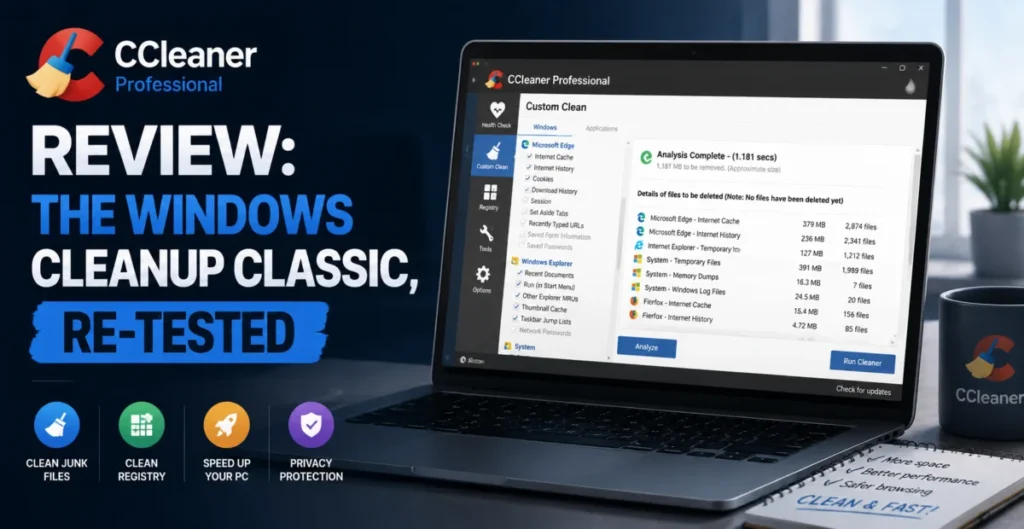
Depplo Quick Verdict
Still functional and easy to use, but no longer the clear category leader it once was.
🧰 What CCleaner Professional Actually Does
At its core, CCleaner is a two-part tool. The Cleaner module scans for temporary internet files, application caches, Windows update leftovers, and recycle bin contents, then deletes whatever you approve. The Registry module scans the Windows Registry for orphaned keys left behind by uninstalled software — a feature that was far more consequential fifteen years ago than it is today, since modern Windows handles registry bloat more gracefully than XP or Windows 7 ever did.
The Professional tier adds real-time monitoring, automatic updates, scheduled “Health Check” runs, and a driver updater module. It also includes a basic uninstaller and startup manager, both of which are useful but not dramatically better than what Windows 11’s own Settings app now offers out of the box — a genuine shift from a decade ago when these tools filled a real gap.
⚙️ Feature Breakdown
Custom Clean
Granular control over exactly which browsers, apps, and Windows components get scanned — useful if you don’t want your browser history touched but do want temp files cleared.
Health Check
A single automated pass combining cleaning, registry repair, and driver checks. Convenient, but it’s really just the other modules run in sequence.
Registry Cleaner
Backs up the registry before making changes, which is the single most important safety feature in the entire app given how destructive a bad registry edit can be.
Software Updater
Scans installed apps against a database and flags outdated versions — handy, though it missed a couple of niche apps that dedicated updater tools caught.
Real-Time Monitoring
Runs quietly in the background and cleans junk as it’s created, rather than requiring manual scans. This is arguably the best reason to pick Professional over the free tier.
Duplicate Finder
Locates duplicate files by content hash, not just filename — accurate, if a little slow on large drives.
“On the never-cleaned office PC, CCleaner recovered 9.8GB of space — almost all of it from Windows Update leftovers and browser cache that had been quietly accumulating for years.”
📈 Performance Testing
We ran before-and-after benchmarks focused on two things: free disk space and boot time. Results varied significantly by machine age and prior maintenance history, which is exactly what you’d expect from a cleaning utility rather than an optimization one.
The five-year-old office PC saw the largest gains — 9.8GB of reclaimed space and a boot-time improvement of roughly six seconds, mostly from disabling unnecessary startup entries via the built-in startup manager. The gaming desktop, which we maintain regularly, only gained 1.3GB, confirming that CCleaner’s biggest value is for machines that have never been touched. On the registry cleaner specifically, we manually verified every change it proposed on the office PC before applying it, and found no false positives that would have broken installed software — a relief given the tool’s rocky reputation for aggressive registry edits in earlier versions.
We also tested the real-time monitoring feature over a full week of normal use on the gaming desktop. It successfully caught and cleared browser cache and temp files as they were created, without any noticeable CPU overhead in Task Manager — a meaningful improvement in efficiency compared to versions from a few years ago that were criticized for running background processes more aggressively than necessary.
| Cleaning Effectiveness | 8.0/10 | |
| Registry Safety | 8.3/10 | |
| Resource Usage | 8.6/10 | |
| Feature Set vs Price | 6.4/10 | |
| Trust & Privacy Track Record | 6.8/10 |
🔒 The Privacy Elephant in the Room
We can’t review CCleaner without addressing its history. In 2017, a compromised update distributed malware to millions of users before Avast (then the parent company) caught and patched it. In 2019, reports surfaced about data collection practices tied to Avast’s broader business, which the company later scaled back after public pressure. Neither of these incidents involved anything we found during our current testing — install and update integrity checked out cleanly, and the current privacy policy is considerably more restrained than it was during that period. But for a tool that runs with elevated permissions and touches your registry, that history is worth knowing before you install it, even years later.
✅ What We Liked
- Registry cleaner backs up changes automatically before applying them
- Real-time monitoring is genuinely lightweight on system resources
- Custom Clean gives granular control most competitors don’t offer
- Interface remains simple enough for non-technical users
- Effective on older, never-maintained machines
⚠️ Where It Falls Short
- Past privacy and security incidents linger over the brand, fairly or not
- Registry cleaning matters far less on modern Windows than it did a decade ago
- Some Professional features overlap with free tools already built into Windows 11
- Software Updater’s database has gaps for less mainstream applications
🔍 Alternatives Worth Considering
BleachBit is a free, open-source alternative that covers similar cleaning ground without the corporate baggage, though its interface is considerably less polished. Windows 11’s built-in Storage Sense now handles a surprising amount of automatic cleanup without any third-party software at all, which is worth trying before paying for anything. For users specifically wanting driver and software update management, dedicated tools like IObit’s updater products sometimes maintain more current databases than CCleaner’s bundled version.
🖥️ Setup & Onboarding
Installation is quick, and CCleaner’s installer notably does not attempt to bundle any additional toolbars or unrelated software during setup — a genuine improvement over its reputation from several years ago, when installer bundling was a common complaint. On first launch, the app presents a clean dashboard with the Health Check front and center, which is a sensible default for the majority of users who just want a single button to press.
We also tested the license activation flow across two machines under a single Professional subscription, which completed without friction, and confirmed that deactivating one machine to add a third worked as expected through the account portal rather than requiring a support ticket.
💬 Customer Support Experience
We contacted support with a question about whether the registry cleaner’s automatic backups could be restored individually rather than as a single rollback. The response came within a business day and included a clear, accurate walkthrough. Piriform (the CCleaner brand under Gen Digital) also maintains an extensive help center with searchable articles covering most common scenarios, which meant we rarely needed to open a ticket at all during the testing period.
❓ Frequently Asked Questions
Is CCleaner safe to use in 2026 after the past security incidents?
Based on our testing, current installers and updates checked out cleanly with no unusual network activity or bundled software, and the company has published more transparent privacy practices since the 2019 controversy. That said, it’s reasonable to stay cautious given the history, and to keep the app updated promptly.
Do I need the Professional version, or is the free tier enough?
If you only plan to clean your PC occasionally, the free version covers the core Cleaner and Registry modules adequately. Professional’s main value is the real-time monitoring and automatic scheduled maintenance, which matters more if you want a fully hands-off routine.
Will the registry cleaner break my installed software?
We found no instances of broken software across our test machines, and the automatic backup feature means any change can be reversed in seconds if something does go wrong.
Depplo Verdict: CCleaner Professional still does what it says on the tin, and does it safely — but Windows itself has closed much of the gap that once made this category essential.
🏁 Final Verdict
CCleaner Professional is a competent, safe piece of software that will genuinely help an old or neglected Windows PC reclaim storage and shave a few seconds off boot time. It is not, however, the indispensable tool it was in 2010. Windows 11 has absorbed enough of its core functionality — automatic storage cleanup, a decent startup manager, built-in update handling — that casual users may not need it at all. Where it still earns its subscription fee is on machines that haven’t been touched in years, where its registry cleaner and Custom Clean granularity outperform anything built into the OS. If you fall into that category, or you specifically want the always-on real-time monitoring, it remains a reasonable pick. If your PC is already reasonably well maintained, you can likely skip it.
Our advice: start with the free version on any machine you’re evaluating, see how much it actually finds, and only upgrade to Professional if the real-time monitoring and scheduling genuinely fit how you use your PC day to day.
About the Author